tn1r CS2 Settings – Crosshair, Video & Gear (2026)
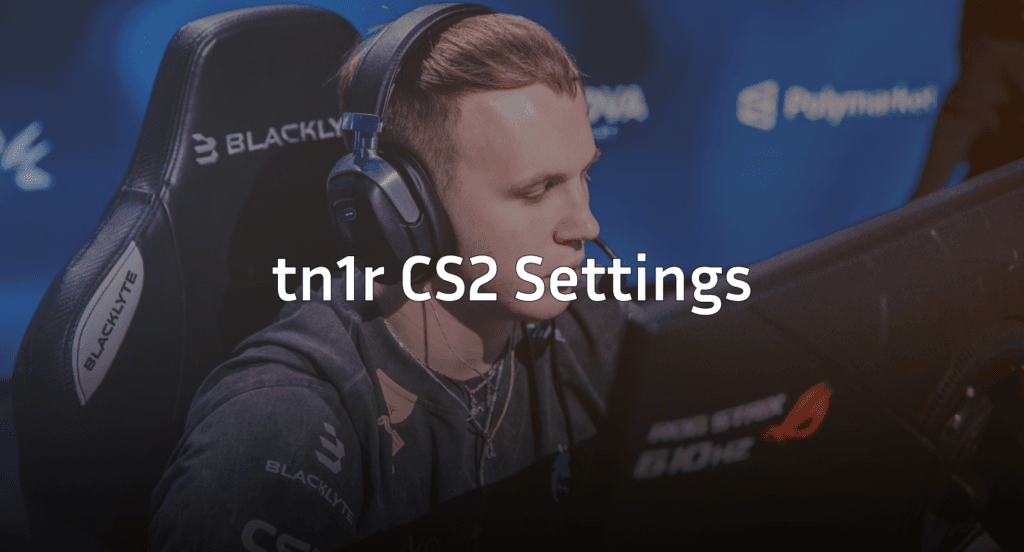
Want to frag like one of Counter-Strike’s emerging talents? These tn1r CS2 settings break down exactly how this skilled rifler configures his game for competitive play.
From mouse sensitivity to video settings, we’ll cover everything you need to replicate his setup.
Who Is tn1r?

tn1r has been making waves in the professional CS2 scene with impressive mechanical skill and smart positioning. Known for his crisp aim and clutch potential, he’s built a reputation as a player worth watching.
His settings reflect a balance between visual clarity and raw performance—priorities that help him compete at the highest level.
tn1r Mouse Settings
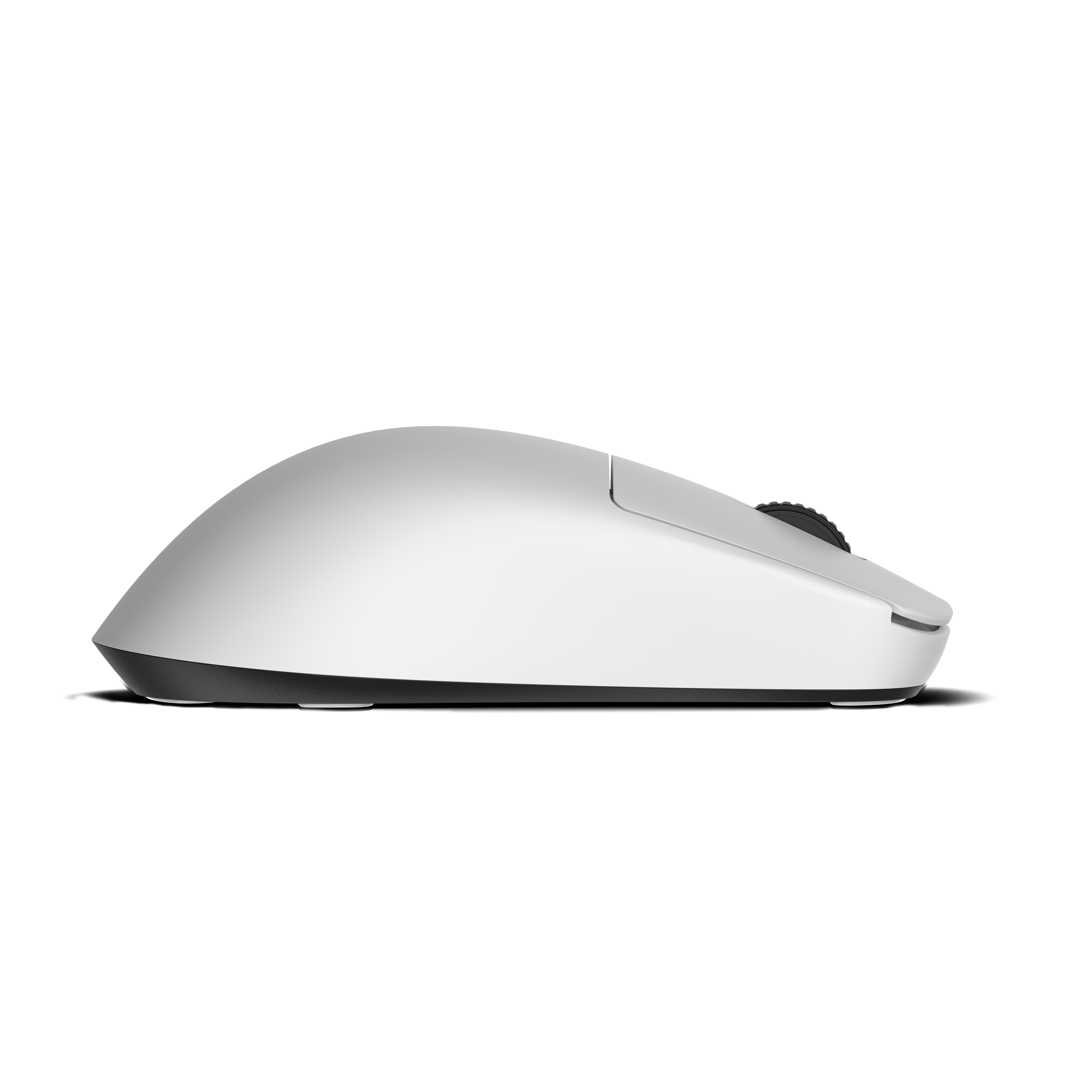
Mouse settings directly impact your aim consistency. Here’s what tn1r uses:
| Setting | Value |
|---|---|
| DPI | 800 |
| In-Game Sensitivity | 1.0 |
| eDPI | 800 |
| Zoom Sensitivity | 1.0 |
| Polling Rate | 1000 Hz |
| Raw Input | On |
His 800 eDPI sits in the low-to-medium range favored by most pros. This allows for precise micro-adjustments when holding angles while still enabling comfortable 180-degree turns.
Key takeaway: Lower sensitivity builds muscle memory faster and improves consistency on long-range duels.
tn1r Crosshair Settings
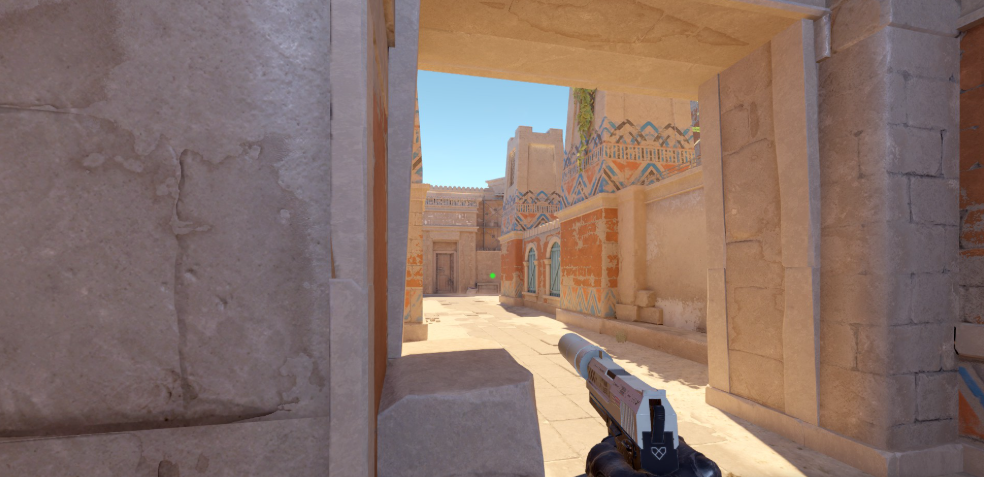
A clean crosshair helps you land those crucial headshots. Here’s tn1r’s crosshair configuration:
| Setting | Value |
|---|---|
| Style | 4 (Classic Static) |
| Size | 2 |
| Gap | -2 |
| Thickness | 1 |
| Outline | Yes (0.5) |
| Color | Green (1) |
| Dot | No |
To copy his crosshair instantly, use this console command:
cl_crosshair_drawoutline 1; cl_crosshair_outlinethickness 0.5; cl_crosshaircolor 1; cl_crosshairdot 0; cl_crosshairgap -2; cl_crosshairsize 2; cl_crosshairstyle 4; cl_crosshairthickness 1The small, tight crosshair with a thin outline provides excellent visibility against most backgrounds without obscuring enemy heads at distance.
tn1r Video Settings
Performance matters in competitive CS2. tn1r optimizes his video settings for maximum frames while maintaining visual clarity:
| Setting | Value |
|---|---|
| Resolution | 1280×960 |
| Aspect Ratio | 4:3 |
| Scaling Mode | Stretched |
| Display Mode | Fullscreen |
Advanced Video Settings
| Setting | Value |
|---|---|
| Boost Player Contrast | Enabled |
| V-Sync | Disabled |
| Multisampling Anti-Aliasing | 4x MSAA |
| Global Shadow Quality | Medium |
| Texture Detail | High |
| Shader Detail | Low |
| Particle Detail | Low |
| Ambient Occlusion | Disabled |
The 4:3 stretched resolution makes player models appear wider, potentially making targets easier to track. Many pros prefer this despite the reduced field of view. If you want to explore different configurations, check out our cs2 video settings guide for detailed explanations.
For GPU optimization, our cs2 nvidia settings guide covers driver-level tweaks that complement in-game settings.
tn1r Viewmodel Settings
Viewmodel positioning affects how much screen space your weapon occupies:
viewmodel_fov 68; viewmodel_offset_x 2.5; viewmodel_offset_y 0; viewmodel_offset_z -1.5; viewmodel_presetpos 3This configuration keeps the weapon model compact, maximizing your visible play area during gunfights.
tn1r Radar Settings
Proper radar configuration provides crucial information without requiring you to look away from the action:
| Setting | Value |
|---|---|
| Radar Centers Player | Yes |
| Radar Rotation | Yes |
| Radar Size | 1.0 |
| Radar Map Zoom | 0.5 |
For a complete breakdown of radar optimization, see our cs2 radar settings guide.
tn1r Gear & Peripherals
Professional players rely on quality equipment. Here’s what tn1r uses:
| Peripheral | Product |
|---|---|
| Mouse | Logitech G Pro X Superlight |
| Mousepad | Zowie G-SR |
| Keyboard | Wooting 60HE |
| Monitor | 360Hz Gaming Monitor |
| Headset | HyperX Cloud II |
The Logitech G Pro X Superlight weighs just 63 grams, reducing fatigue during long practice sessions. Combined with the control-oriented Zowie G-SR mousepad, it provides consistent stopping power for flick shots.
How to Apply These Settings
Follow these steps to implement tn1r’s configuration:
- Launch CS2 and open the settings menu
- Copy mouse settings exactly, including raw input
- Paste the crosshair code into your console
- Adjust video settings to match the tables above
- Apply viewmodel commands via console or autoexec
- Test in deathmatch before competitive play
Pro tip: Don’t change everything at once. Adjust sensitivity first, practice for a week, then tweak other settings gradually.
Comparing tn1r to Other Pros
Curious how tn1r’s setup compares to other professionals? His settings share similarities with several top players:
- Similar eDPI range: Many riflers like NiKo use comparable sensitivity ranges
- 4:3 stretched preference: A common choice among European pros
- Static crosshair style: The standard for professional play
You might also find our guides on shroud cs2 settings and coldzera cs2 settings helpful for comparison.
Should You Copy Pro Settings?
Pro settings provide an excellent starting point, but they’re not magic. What works for tn1r might feel uncomfortable for you.
Consider these factors:
- Hand size and grip style affect ideal sensitivity
- Monitor and desk setup influence comfortable positioning
- Personal preference matters more than copying exactly
Use these settings as a foundation, then make small adjustments based on your performance.
Conclusion
These tn1r CS2 settings give you a proven configuration used at the professional level. His low sensitivity, clean crosshair, and performance-focused video settings create a solid foundation for competitive play.
Start with his mouse settings, practice consistently, and adjust as needed. Looking to upgrade your loadout while you grind? Browse cs2 skins to find your perfect weapon finish.