Hallzerk CS2 Settings – Sensitivity, Crosshair & Viewmodel
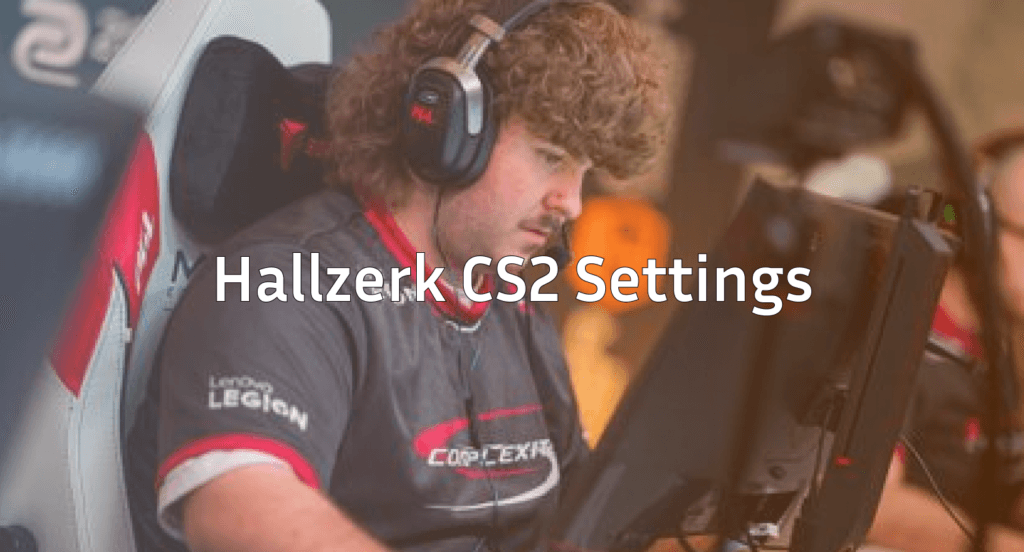
Håkon “hallzerk” Fjærli has established himself as one of the most promising AWPers in professional Counter-Strike. If you want to understand hallzerk CS2 settings and replicate his configuration, this guide breaks down everything from his crosshair to his mouse sensitivity.
The Norwegian rifler-turned-AWPer brings a unique playstyle that blends aggressive peeking with patient positioning. Let’s dive into the exact settings he uses to dominate with the AWP.
Who Is Hallzerk?
Hallzerk is a Norwegian professional CS2 player known for his sharp aim and clutch potential. He gained recognition in the Scandinavian scene before moving to international competition.
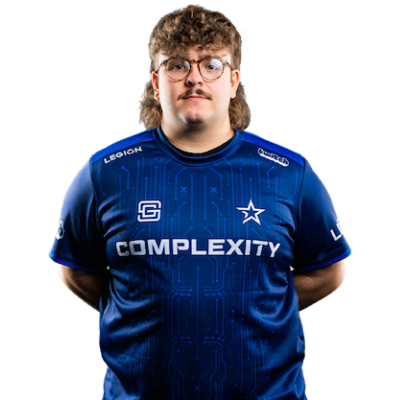
Quick Facts:
- Real Name: Håkon Fjærli
- Nationality: Norwegian
- Role: AWPer / Rifler
- Born: 2000
His flexible playstyle allows him to switch between primary AWPing and rifle support, making him a versatile asset for any team. Watching hallzerk play, you’ll notice his calm demeanor during high-pressure situations—a trait that defines elite-level AWPers.
Hallzerk CS2 Mouse Settings
Hallzerk uses relatively low sensitivity, which is standard for AWPers who need precise flick shots and steady scope control.
| Setting | Value |
|---|---|
| DPI | 800 |
| In-Game Sensitivity | 0.9 |
| eDPI | 720 |
| Zoom Sensitivity | 1.0 |
| Windows Sensitivity | 6 |
| Raw Input | On |
An eDPI of 720 falls within the typical range for professional AWPers. This lower sensitivity allows for micro-adjustments when holding angles while still enabling quick 180-degree turns when needed.
If you’re transitioning from a higher sensitivity, lower it gradually over several days rather than making an immediate switch.
Hallzerk Crosshair Settings
His crosshair is clean and minimalist—perfect for precise aiming without visual clutter.
| Setting | Value |
|---|---|
| Style | 4 |
| Size | 2 |
| Thickness | 0 |
| Gap | -3 |
| Outline | No |
| Color | Green (1) |
| Dot | No |
Crosshair Code
Copy and paste this into your console:
cl_crosshairsize 2; cl_crosshairgap -3; cl_crosshairthickness 0; cl_crosshairstyle 4; cl_crosshaircolor 1; cl_crosshair_drawoutline 0; cl_crosshairdot 0This small, static crosshair provides excellent visibility against most backgrounds while keeping your screen uncluttered during rifle sprays and AWP flicks.
Hallzerk Video Settings
Performance matters more than visual fidelity in competitive CS2. Hallzerk prioritizes high frame rates over graphical quality.
| Setting | Value |
|---|---|
| Resolution | 1280×960 |
| Aspect Ratio | 4:3 |
| Scaling Mode | Stretched |
| Display Mode | Fullscreen |
Graphics Settings
| Setting | Value |
|---|---|
| Global Shadow Quality | Medium |
| Model / Texture Detail | Low |
| Texture Filtering Mode | Bilinear |
| Shader Detail | Low |
| Particle Detail | Low |
| Ambient Occlusion | Disabled |
| High Dynamic Range | Performance |
| FidelityFX Super Resolution | Disabled |
The 4:3 stretched resolution makes player models appear wider, potentially making targets easier to track. Many professional players prefer this setup despite the reduced field of view.
Hallzerk Viewmodel Settings
His viewmodel keeps the weapon positioned for minimal screen obstruction.
| Setting | Value |
|---|---|
| Viewmodel FOV | 68 |
| Viewmodel Offset X | 2.5 |
| Viewmodel Offset Y | 0 |
| Viewmodel Offset Z | -1.5 |
| Viewmodel Presetpos | 3 |
viewmodel_fov 68; viewmodel_offset_x 2.5; viewmodel_offset_y 0; viewmodel_offset_z -1.5; viewmodel_presetpos 3Hallzerk’s Gear
Professional players invest in quality peripherals. Here’s what hallzerk uses:
| Component | Product |
|---|---|
| Mouse | Logitech G Pro X Superlight |
| Mousepad | Zowie G-SR |
| Keyboard | Wooting 60HE |
| Monitor | BenQ ZOWIE XL2546K (240Hz) |
| Headset | HyperX Cloud II |
The Logitech G Pro X Superlight is a popular choice among pros for its lightweight design and reliable sensor. Combined with the control-oriented Zowie G-SR mousepad, it provides consistent tracking for AWP flicks.
How to Apply Hallzerk’s Settings
Follow these steps to copy his configuration:
- Launch CS2 and open the settings menu
- Navigate to Game Settings and enable the developer console
- Press the tilde key (~) to open the console
- Paste the crosshair code and press Enter
- Adjust mouse settings in the Game Settings menu
- Set video options under Video Settings
- Apply viewmodel commands through the console
For additional optimization, check out our guide on CS2 launch options to maximize your frame rate.
Tips for Using Low Sensitivity Like Hallzerk
Switching to hallzerk’s low eDPI requires adjustment. Here’s how to adapt:
- Get a large mousepad — You’ll need space for wide arm movements
- Use arm aiming — Rely on your arm for large movements, wrist for micro-adjustments
- Practice in deathmatch — Spend time warming up before competitive matches
- Be patient — It takes 1-2 weeks to fully adjust to a new sensitivity
Understanding CS2 ranks can help you track your improvement as you refine your settings.
Hallzerk’s Playstyle
What makes hallzerk effective isn’t just his settings—it’s how he uses them:
- Patient angle holding — He doesn’t over-peek or give away positions
- Quick scope flicks — His low sensitivity allows precise flick shots
- Rifle versatility — Comfortable with the AK-47 when the team needs it
- Clutch mentality — Stays calm in 1vX situations
His approach to AWPing emphasizes positioning over raw mechanical skill, though he has plenty of both.
Final Thoughts
Copying hallzerk CS2 settings gives you a solid foundation, but remember that professional configurations are personal preferences developed over years of play. Use his settings as a starting point, then adjust based on your comfort level.
The most important factors are consistency and practice. Stick with settings long enough to build muscle memory before making changes.
Ready to upgrade your loadout? Browse CS2 skins to find the perfect AWP skin to match your new hallzerk-inspired setup.